
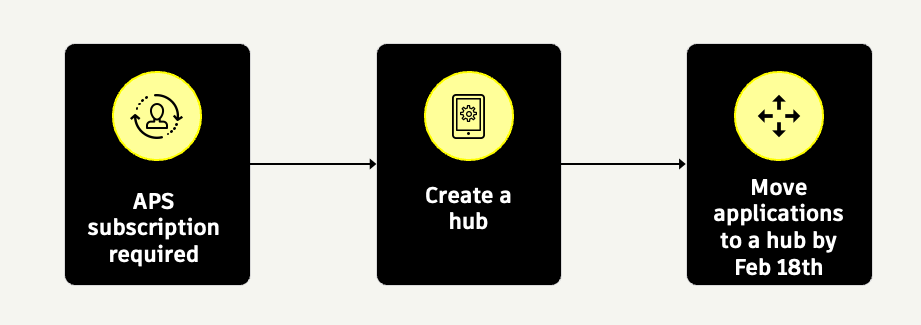
Disclaimer: If you’ve already completed the migration of all applications into a developer hub, no further action is needed
OVERVIEW
You might be reading this because you encountered one of the following errors while calling Autodesk Platform Services (APS) APIs:
“Autodesk Platform Services: Error code 400 Bad Request. Application must be assigned to a Developer Hub.”
or
"error_description": "The client credentials are invalid."
If so, don’t worry — you’re not alone. These errors are coming up because the application(client ID) calling the APIs has been archived because it is not in a developer hub. The client ID is currently sitting outside the hub in a standalone page called "My Applications". Please do make sure to follow the steps mentioned below to move the app in a developer hub. Once the application is in a hub, it will un-archive automatically and will be able to call APS APIs
Step 0: Important Prerequisites
-
You can only create a Developer Hub on an Autodesk team that has an active APS subscription. Review your options here
-
Acquire an APS offering first to create a hub
-
-
Please double-check your team’s entitlements and create the hub under your subscribed team to ensure platform access and avoid service interruptions
-
You can skip step 0 if you already have a valid APS offering
-
You can skip to Step 5 and 6 if you are already a part of a developer hub
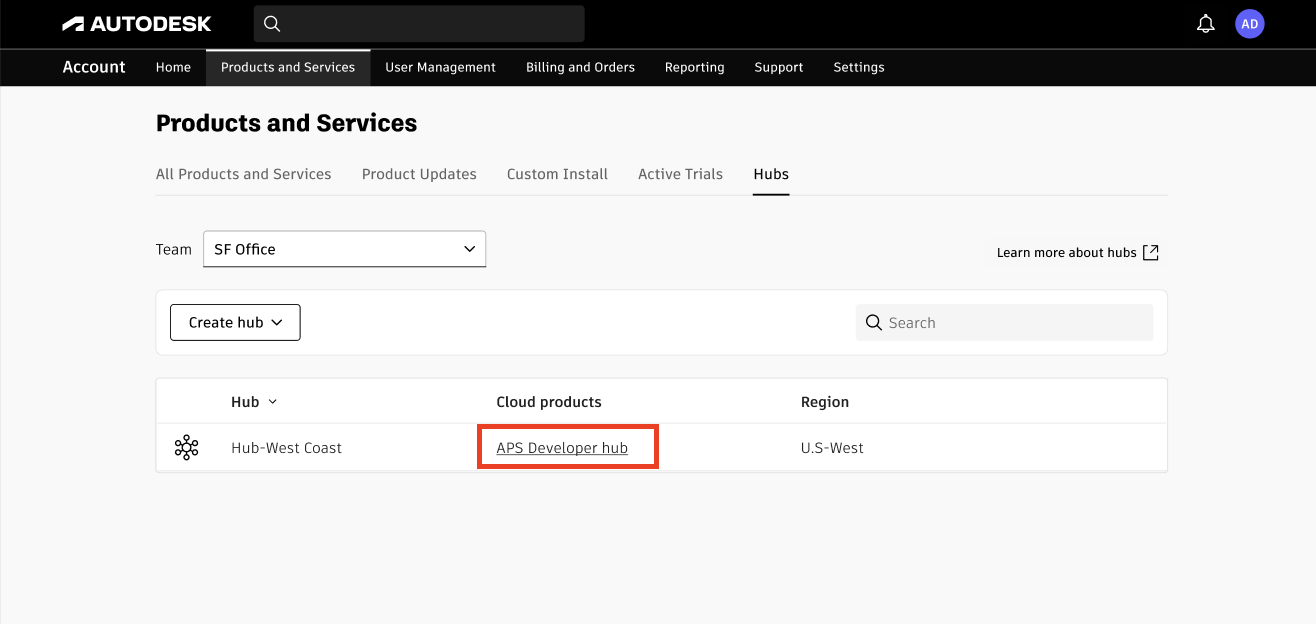
Step 1: Navigate to the Hubs Page
- Log in to your Autodesk account(manage.autodesk.com)
- Only a Primary/Secondary team can create a hub
- Click Products and Services
- Click Hubs
Step 2: Initiate Hub Creation
- Click the Create Hub button

Step 3: Set Up Your New Hub
- In the hub creation dialog:
- Select APS developer hub as your Product
- Fill in the required fields, including:
- Hub Name (e.g., “EBA Engineering Hub”)
- Description (optional but recommended for clarity)
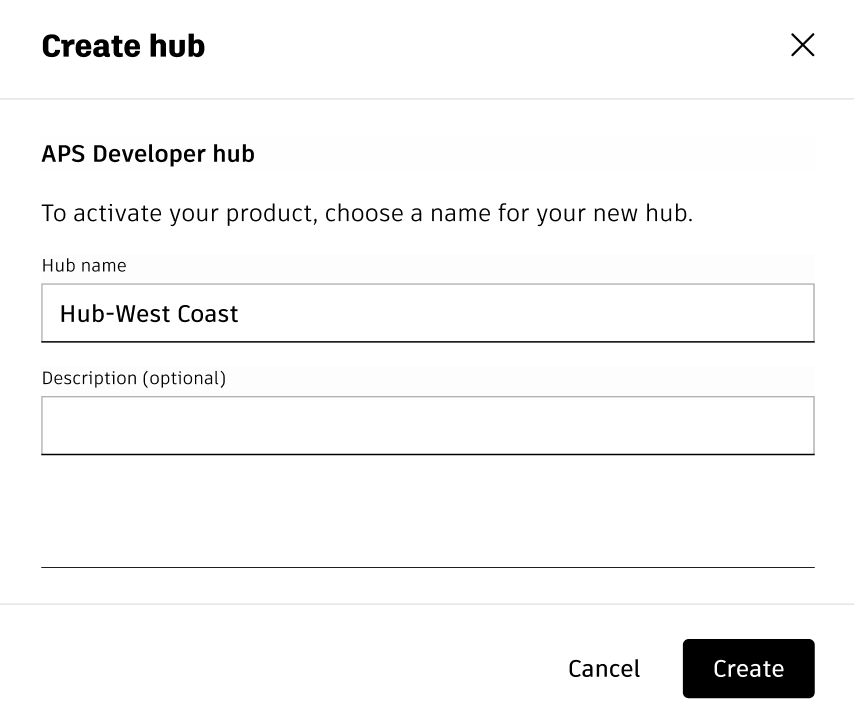
Step 4: Create & Activate the Hub
- Review your entries, then click Create & Activate.
- Once the hub is created, refresh the page
- Click the hub name and you will be redirected to the developer portal
Step 5: Invite Team Members
- From your Hub’s Admin panel, start inviting developers and admins
- Assign appropriate roles to ensure everyone has the right access and permissions for migration and ongoing management.
- Learn more here
Step 6: Move Applications into the Hub
If you’re a hub admin,
- First invite your team members to the hub using the "Add Member" button
- Tell your team members to move their applications into the hub using the "Move apps to hub" button
As an app owner:
- Select apps using the checkbox
- Click the move apps button
- Select hub to move apps to and move app the apps to the hub, Learn more here
IMP Disclaimer:
- Only App Owners can move applications from their personal "My applications" page to the hub
- This flexibility ensures all your critical applications are transitioned efficiently and safely into your new hub, regardless of their original contract or team assignment.
Why Act Now?
With the new APS business models coming, establishing your Developer Hub:
- Prevents application disruption once the legacy non hub experience is retired.
- Ensures your team benefits from improved management, security, and visibility under the new APS platform structure.
- Keeps you ready for future features and faster onboarding of new API offerings.
Ready to grow with APS? Make the transition today and take full control of your developer experience in the new era of Autodesk Platform Services.
Frequently Asked Questions
I see the following error, what should I do?
"error_description": "The client credentials are invalid."
This error will come up if your application(client ID) is outside a hub, to resolve this you need to move your application into a developer hub
Will migrating my developer hubs cause downtime? Do I need to do it on a weekend?
No downtime is expected. The migration process is designed to be smooth and seamless, so you can move your hubs whenever it is convenient, on a weekday or a weekend.
How do I move my apps? Do I need to recreate anything?
Your hub admin will invite each app owner to the new hub. Once invited, the app owner selects "Move App to developer hub" and chooses which apps to move. You do not need to recreate apps or run any export or import steps. The process moves everything for you.
Will I be charged for apps that are stored but not actively used?
No. You are only charged for actual API usage.
Inactive apps stored in the hub do not generate any fees. If an app uses paid APIs, usage will be charged. If it uses only free APIs, there is no cost.
I’m an EBA customer who accesses APS outside of my EBA, and I currently do not have APS in my EBA. What is the process for setting up a Developer Hub in this situation?
-
Log in to manage.autodesk.com and create a new team
-
Acquire the free offering and link it to your new team (Available starting December 8th)
-
Go to Products and Services > Hubs
-
Select Create Hub
-
Choose APS developer hub as the product and complete the required fields
-
Click Create & Activate, then refresh the page and open the new hub in the developer portal
-
From the hub admin panel, invite team members, assign roles, and move apps into the hub
I see the APS Developer hub on the Forma Admin interface, what should I do ?
-
APS Developer Hubs will be visible in the Forma Admin interface IF the user accessing that interface is the administrator of both Forma Hubs and APS Developer Hub.
-
PLEASE IGNORE the developer hub UI in the Forma Admin interface.
-
You should only be using the Developer Hub on aps.autodesk.com
-
The APS developer hub UI in the Forma Admin interface will be removed soon
-